Posting a shift on MAP HealthCare Connect takes under a minute. The moment you post, it goes live to every matching, compliant healthcare professional in your area — no phone calls, no waiting for a callback. You watch it fill in real time from your dashboard.
Whether you're covering a last-minute gap or planning next week's rota, this guide walks you through it click by click: from logging in and setting up your details, to posting your first HCA, SCA or RGN shift and seeing it appear in your open-shifts list. It takes about five minutes the first time — and seconds every time after.
Before you start
Two things need to be in place before your first post. Getting them right now means every shift you post from here on is one tap away.
Log in to the provider portal
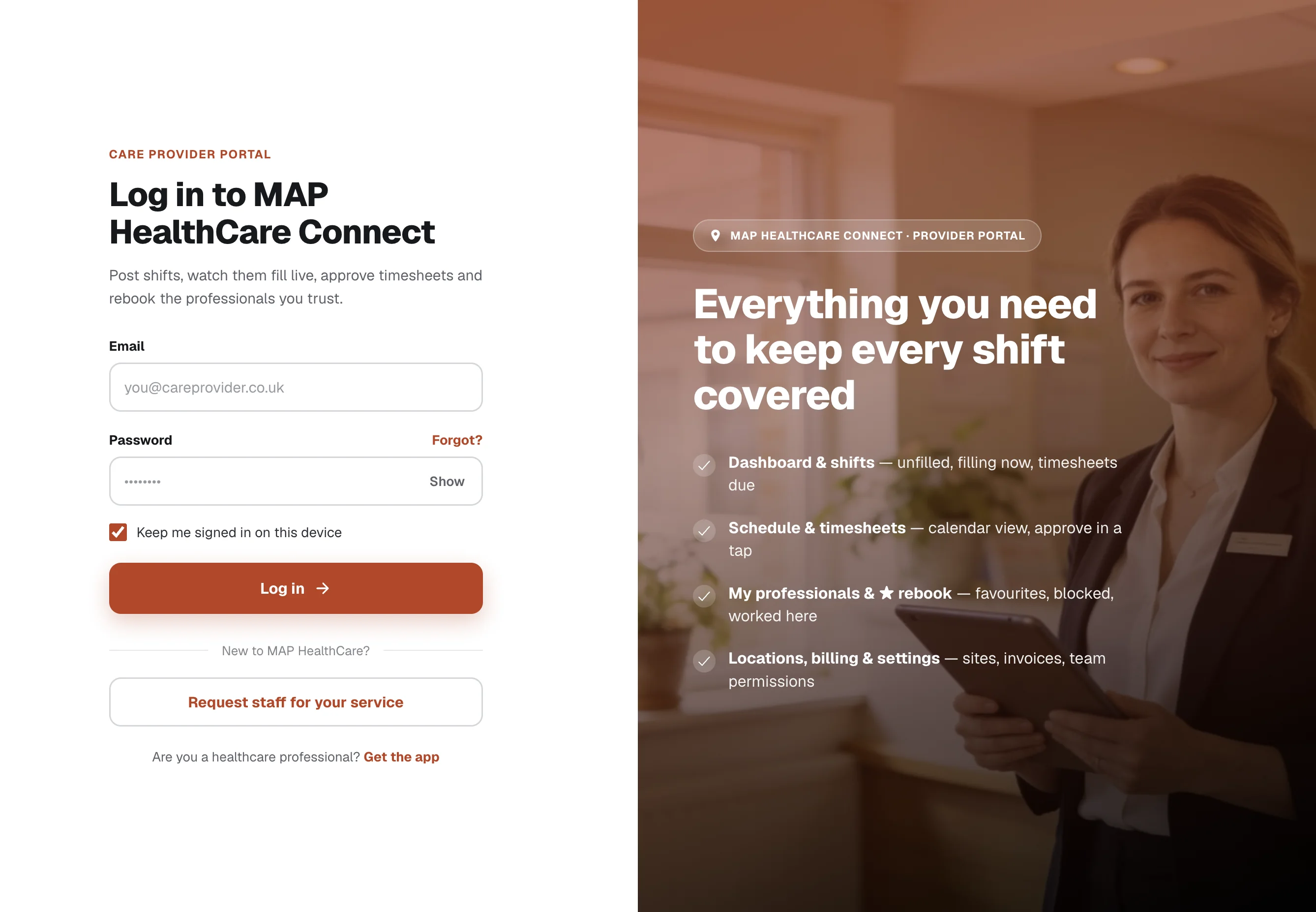
Head to your provider portal and sign in with the email and password for your account. This is the same portal where you'll approve timesheets and rebook the professionals you trust — so tick “Keep me signed in on this device” if it's your own computer.
Complete your organisation details
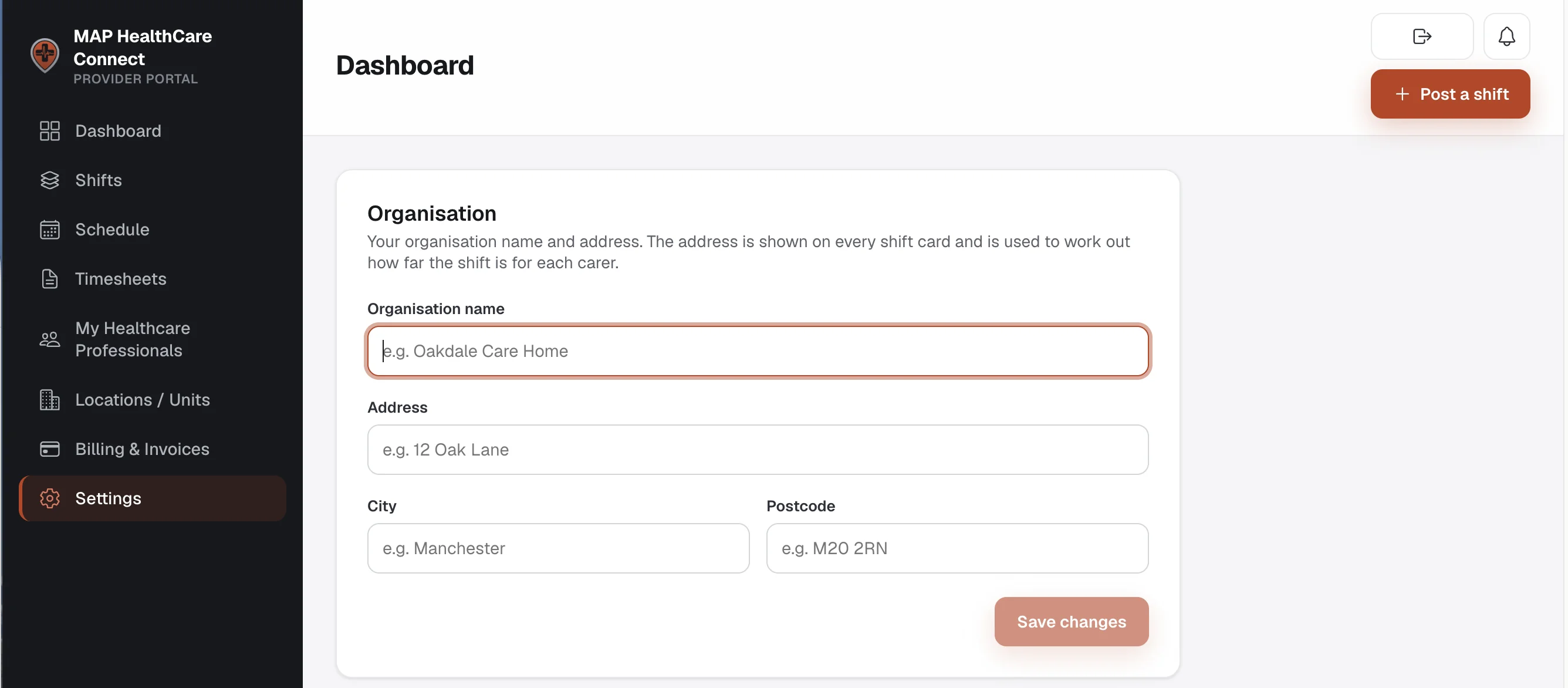
Before you can post anything, MAP HealthCare Connect needs to know who you are and where the shift is. Go to Settings → Organisation and fill in your organisation name and full address (street, city and postcode), then press Save changes.
This step is not optional. Your address is shown on every shift card and is used to work out how far each shift is for each carer — so a professional deciding whether to accept can see exactly where they're travelling to.
Until these fields are filled in and saved, you won't be able to post a shift.
Open the “Post a shift” form
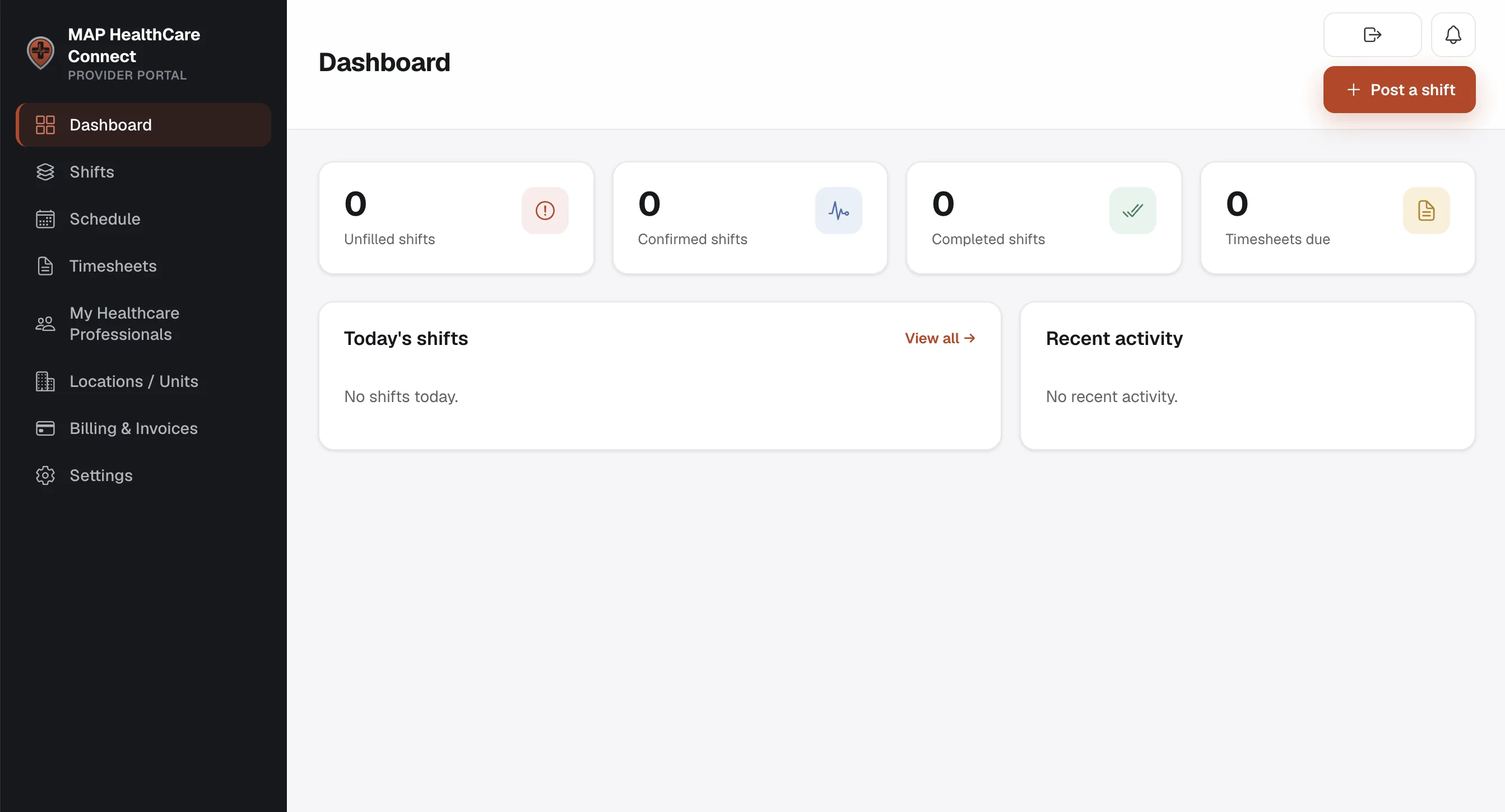
With your details saved, you're ready. From anywhere in the portal, click the orange + Post a shift button in the top-right corner. Your dashboard also shows your live counts — unfilled shifts, confirmed shifts, completed shifts and timesheets due — so you always know where things stand.
Step 1. Choose the grade
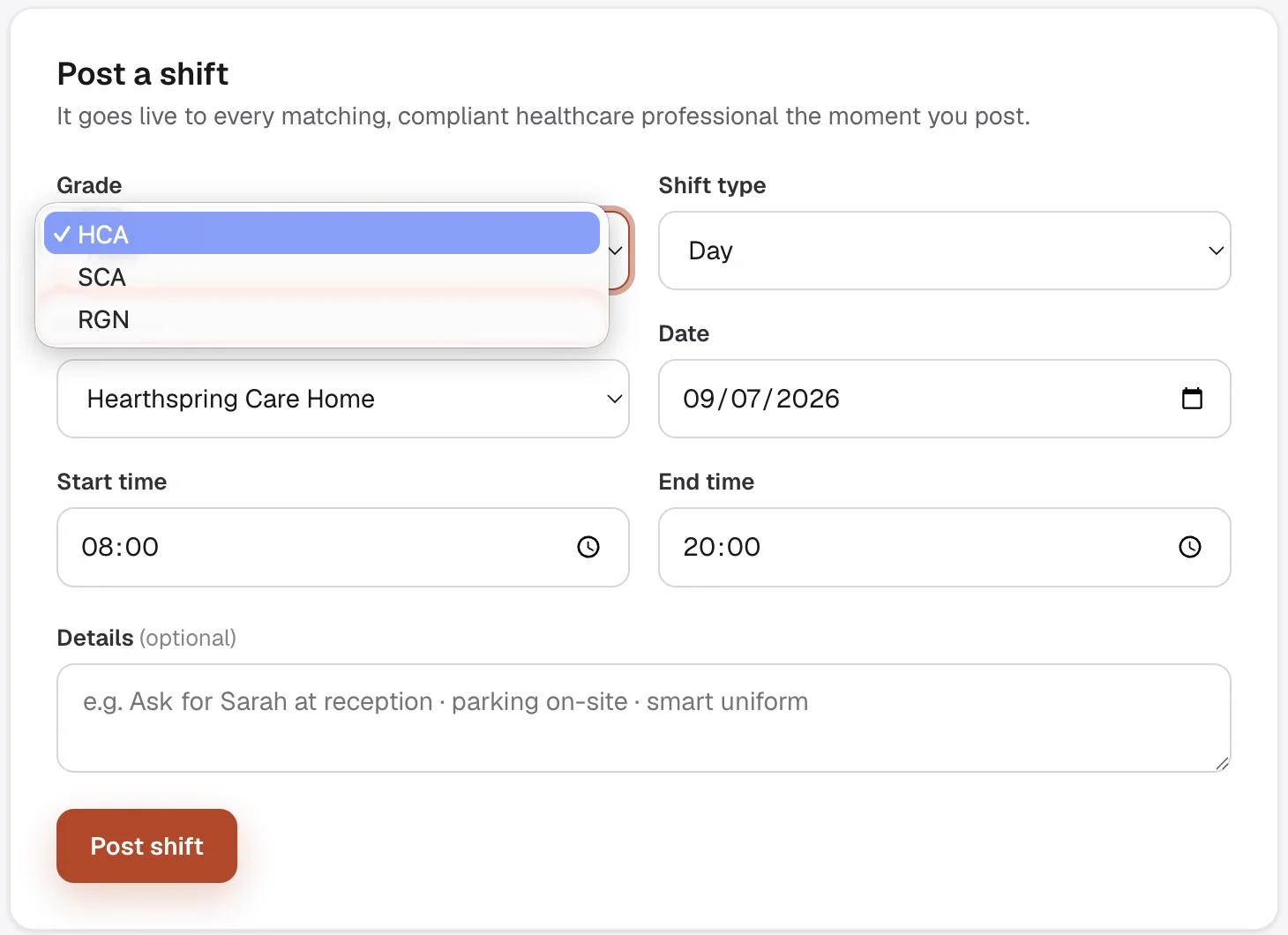
Grade is the most important field on the form, because it decides who sees your shift. Only professionals who hold the matching grade will be shown it. Pick from:
- HCA — Health Care Assistant
- SCA — Senior Care Assistant
- RGN — Registered General Nurse
Choose the grade the role genuinely needs. Set it too high and fewer people can accept; set it too low and you may not get the skills the shift calls for.
Step 2. Pick the site / unit
Next, choose where the shift is. The Site / unit list shows the locations linked to your organisation — and, where you've set them up, the individual units within a site (for example Hearthspring Care Home · Preston Wing). Picking the exact unit helps the right people accept and helps them find you on the day.
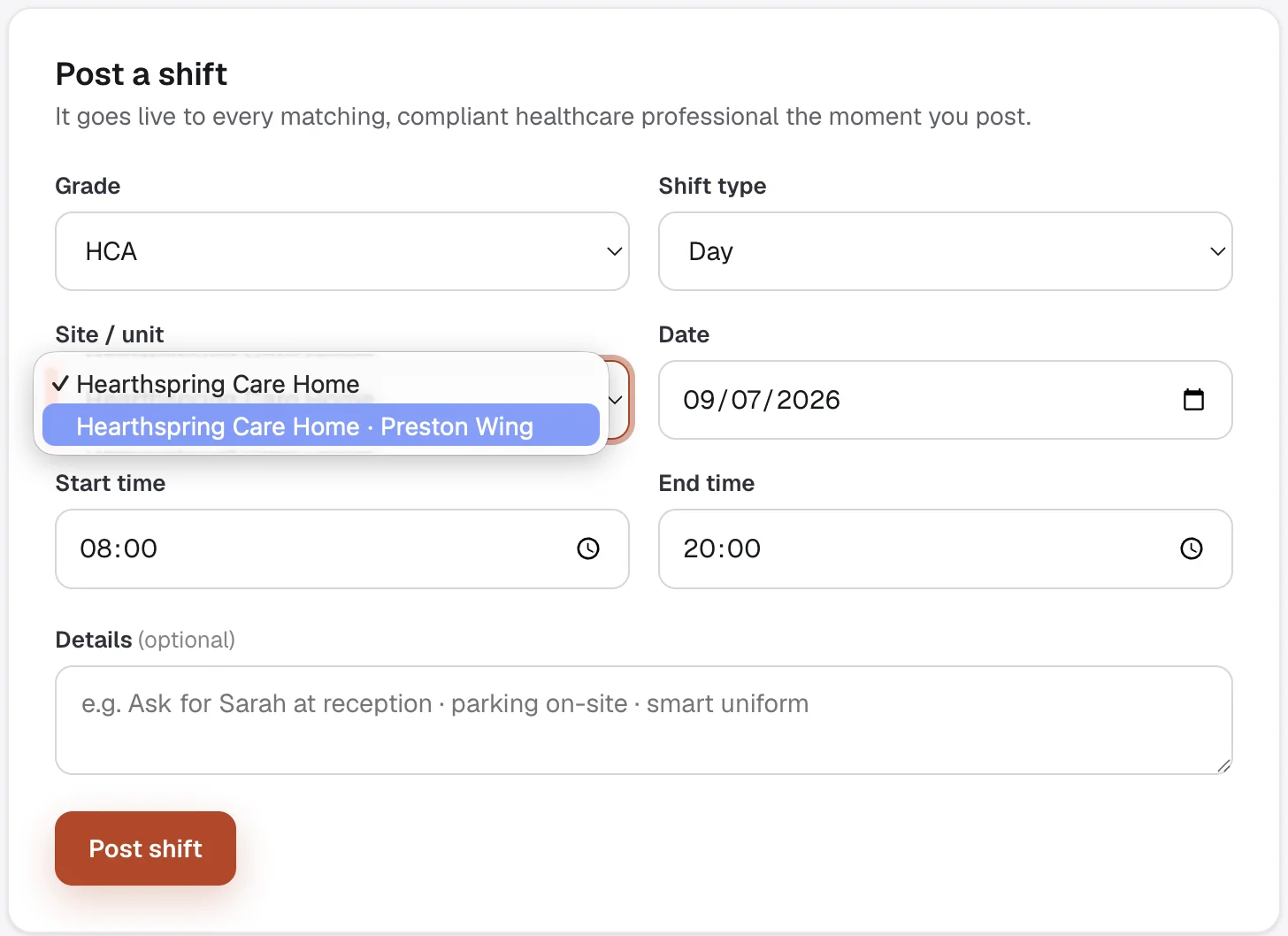
Step 3. Set the shift type, date & time
Now set when the shift runs:
- Shift type — for example Day or Night.
- Date — pick it from the calendar.
- Start time and End time — for example 08:00 to 20:00.
Double-check the date and times before moving on — these are the details a professional relies on to plan their day, so accuracy here saves messages later.
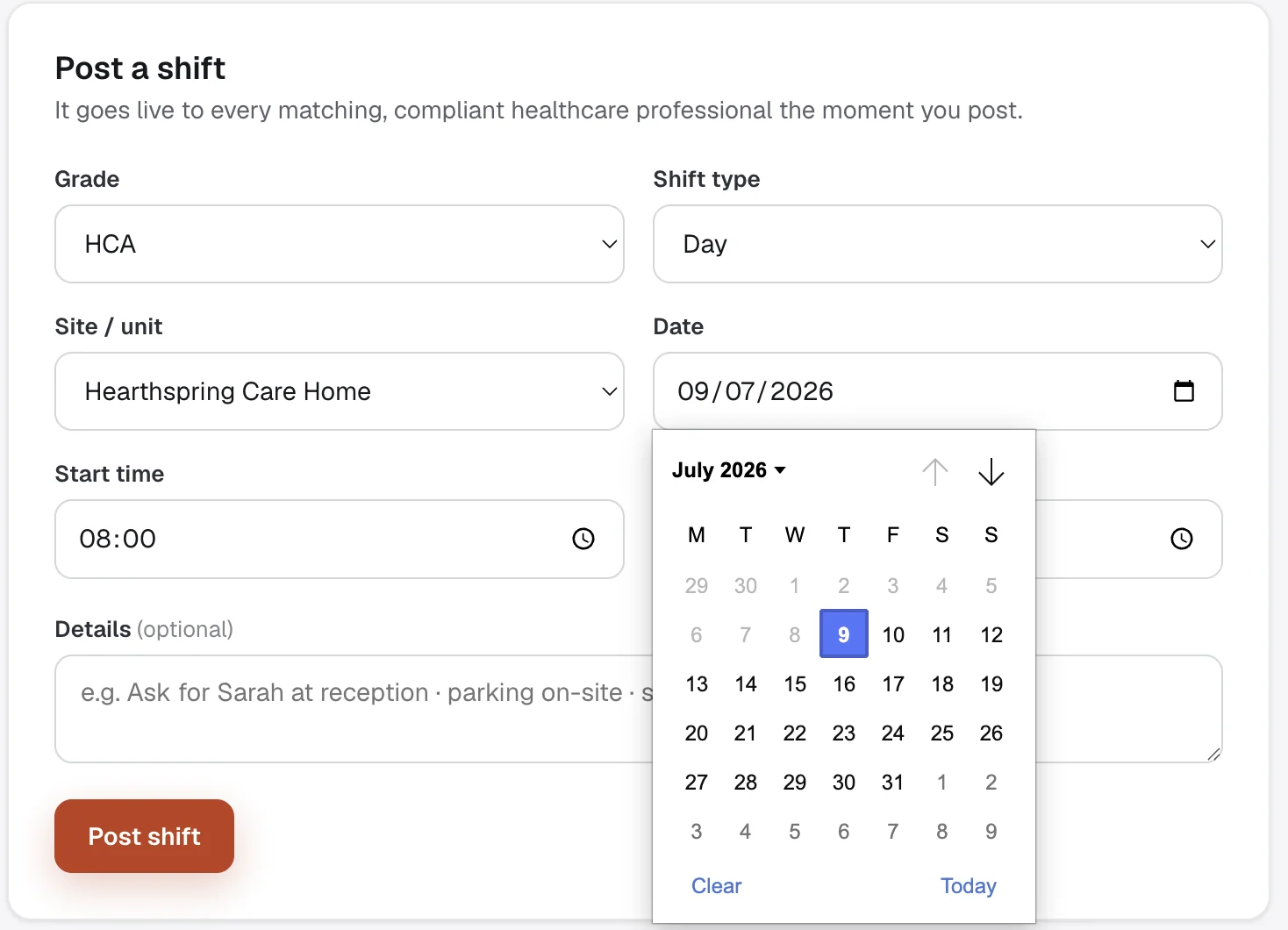
Step 4. Add details (optional, but recommended)
The Details field is optional, but a few words here make a real difference to how quickly a shift fills. Use it for anything a carer would want to know before they arrive — for example: “Ask for Sarah at reception · parking on-site · smart uniform.”
Clear, welcoming details tell professionals you're organised and easy to work with — which makes them more likely to accept and to come back.
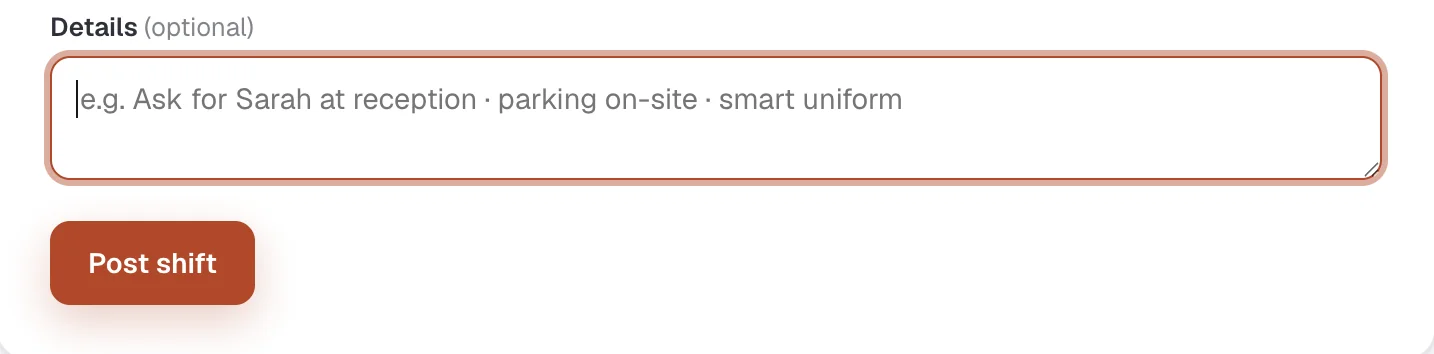
Step 5. Post it — and watch it fill
Press Post shift. That's it. The shift goes live instantly to every matching, compliant professional, who can accept it straight from their phone.
Your new shift appears in your Shifts list marked Open · Unfilled. As soon as someone accepts, its status updates on its own — no phone call, no chasing. You can track everything at a glance: open shifts, confirmed shifts, anything in progress, and past shifts.
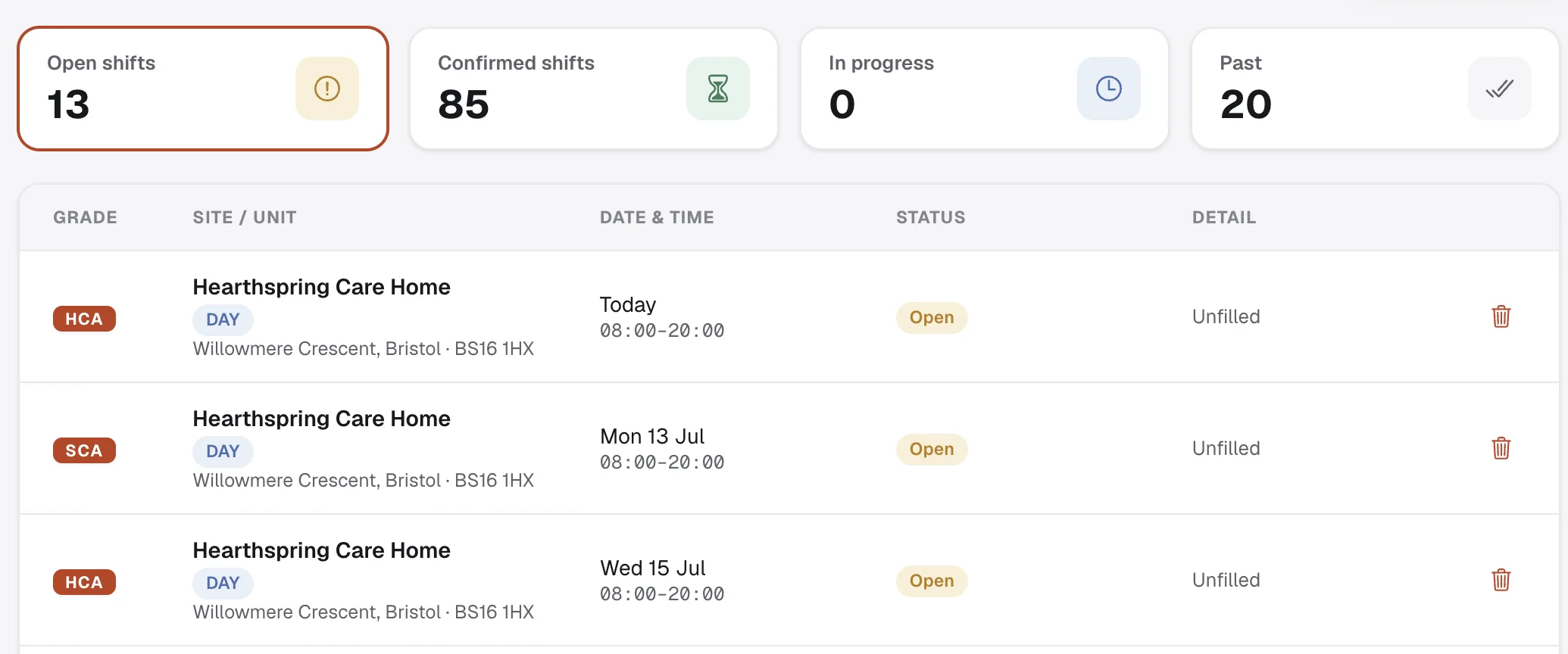
What happens next
Once your shift is filled, the rest of the loop is just as quick. A short summary of the journey:
When the professional finishes, they submit a timesheet from the app. You review and approve it in the portal, which keeps payroll moving. And if they were a great fit, you can invite that exact person back next time in a single tap.
Frequently asked questions
Do I need to set up my organisation details before posting a shift?
Yes. Before you can post a shift you must add your organisation name and full address in Settings → Organisation. The address appears on every shift card and is used to work out how far the shift is for each carer, so it's required.
Who can see the shift I post?
Only vetted, compliant healthcare professionals who hold the grade you select — HCA, SCA or RGN — are shown your shift. Grade is what decides who it reaches.
How quickly does a posted shift go live?
Instantly. The moment you press Post shift it goes live to every matching, compliant professional, who can accept it from their phone. Your shift updates in real time from Open to filled — no phone calls.
What grades can I post a shift for?
Three grades: HCA (Health Care Assistant), SCA (Senior Care Assistant) and RGN (Registered General Nurse). Choose the grade the role genuinely needs.